Roblox can be a fun and creative space for kids – but it can also feel overwhelming for parents.
If you’ve ever wondered “How do I actually control what my child sees on Roblox?” or “Am I missing important safety settings?”, you’re not alone. The good news is that Roblox does offer strong parental controls but they’re only available once you set up a Roblox parent account and link it to your child’s account.
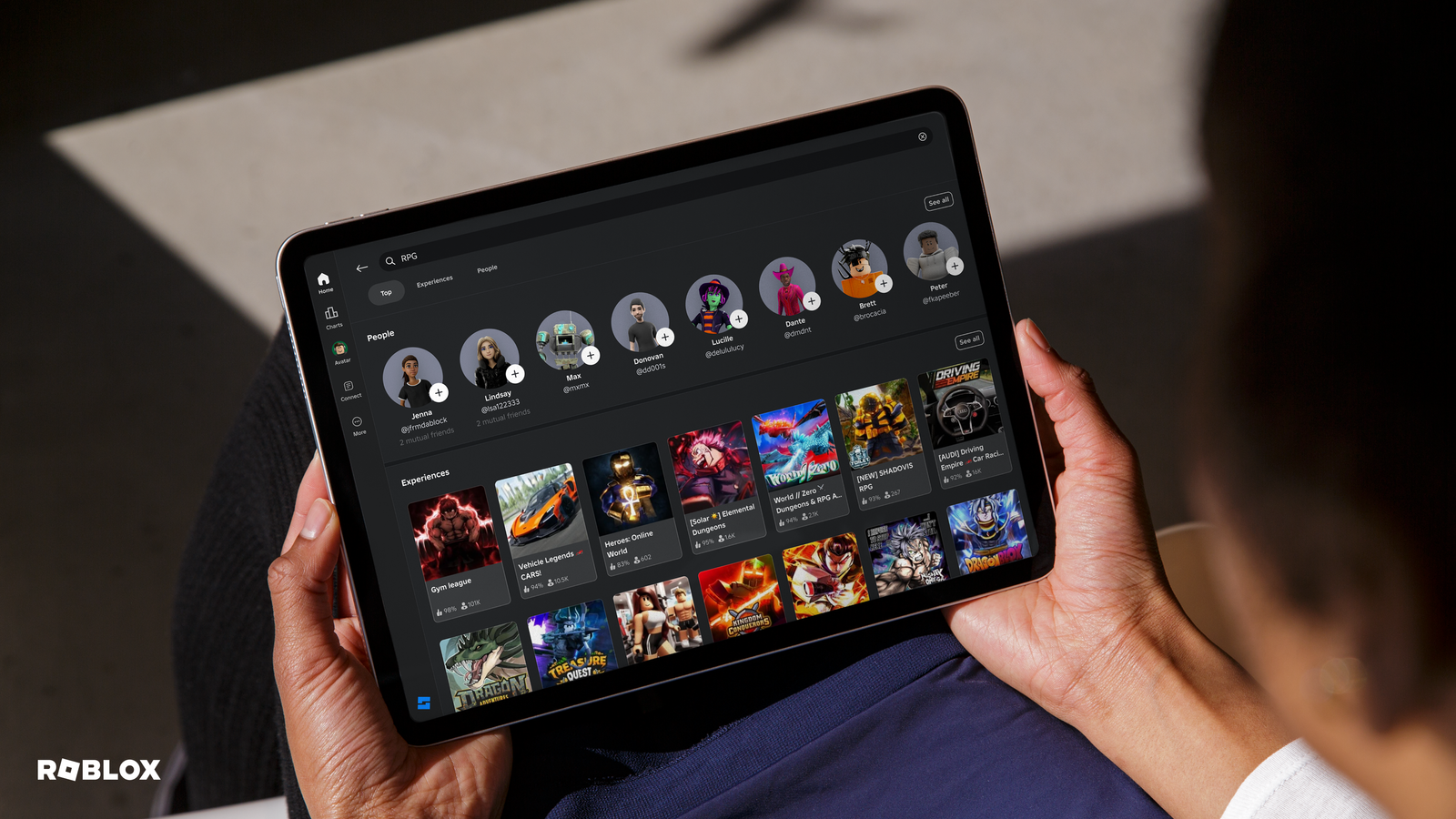
This quick start guide walks you through the process step by step, with no tech knowledge required.
How to Create a Roblox Parent Account and Link Your Child’s Account
- Go to https://www.roblox.com/CreateAccount
- Create your parent Roblox account
- Once your account is created make sure to add an email address and complete the email verification (You’ll need this email later, so make sure you can access it)
- Create your child’s Roblox account, or log into their existing account
- From your child’s account, open the Account Settings page
- Select Parental Controls
- Click Add a parent
- Enter the email address you used for your parent account and click Send email
- Check your inbox for an email titled: “Review your child’s request to link to their account on Roblox”
- Click “Use existing account” (Or create a parent account if you skipped Step 2)
- Verify that you are of parental age using one of the following methods:
- Credit card verification
- A small temporary charge (usually $0–$0.10) may appear and is typically refunded within 24 hours
- This is only used to confirm the account exists
- ID verification
- Scan the QR code using your smartphone
- Provide one valid ID (driver’s license, passport, or ID card)
- Credit card verification
- When prompted, click Agree to link your parent account to your child’s account
- You’re done!


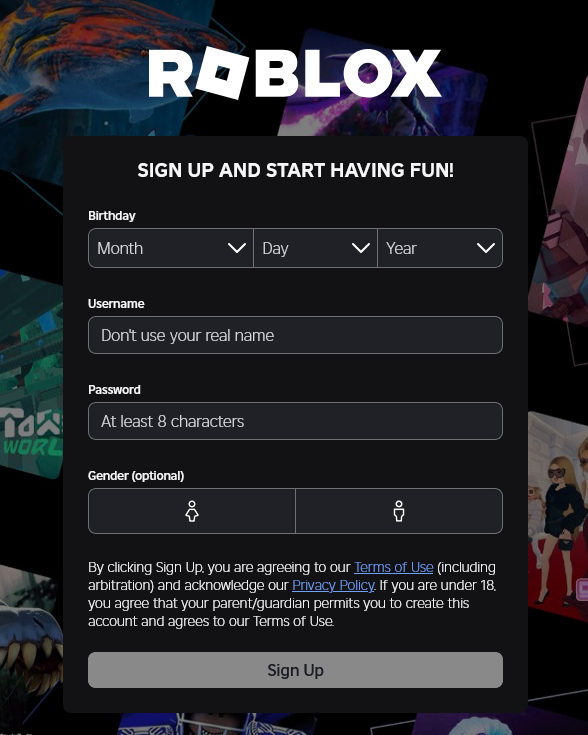
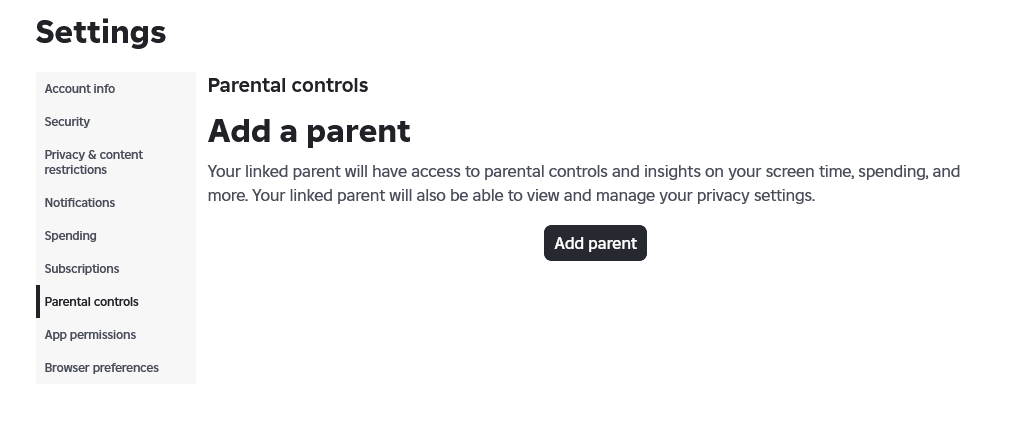
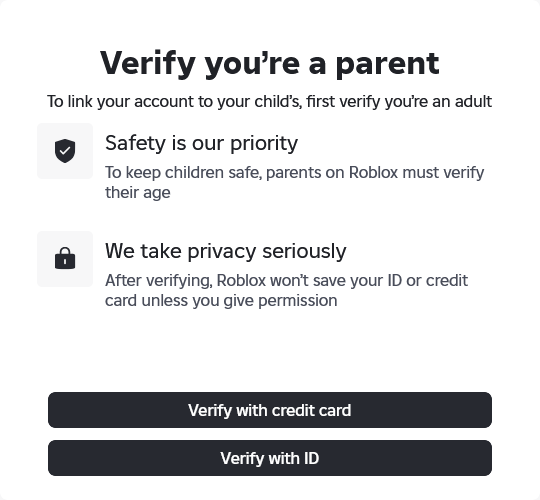
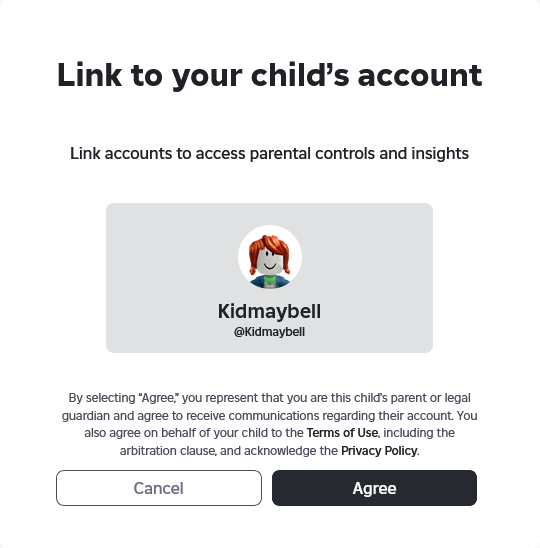
Once your parent account is linked, you’ll have access to Roblox’s built-in parental controls.
From your parent dashboard, you can:
- Control what types of content your child can access
- Block specific experiences (games)
- Set chat and spending restrictions
- View screen time and usage insights
- Adjust settings as your child grows
You don’t need to monitor everything – just set clear boundaries once, then check in occasionally.
This is about helping your child enjoy Roblox safely, while giving you peace of mind.
Roblox Parental Controls FAQ
How are you managing your child’s time on games like Roblox? Check out my free Screen Time Guidelines for Young Kids (Ages 0–12) to learn tips for each age group. Remember, you’re not in this alone.